Calendar
Manage your training and event calendar with drag-and-drop scheduling and ICS import/export.
Overview
You find this page in the menu under Training → Calendar.
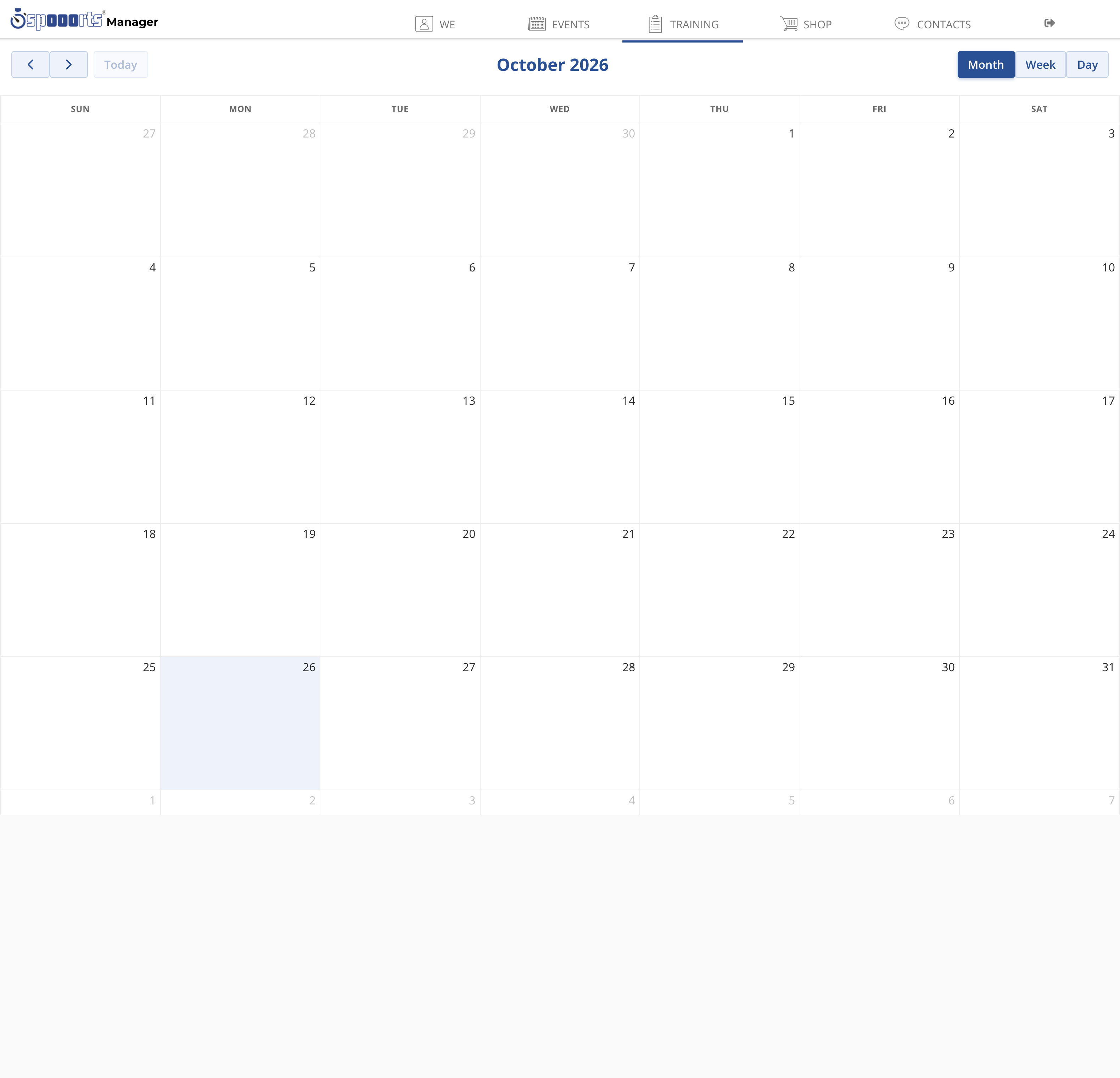
The calendar gives you a visual overview of all scheduled training sessions and events. You can create appointments directly in the calendar by clicking, move them by drag and drop, or resize them by dragging the edges.
Via filters you show and hide individual training groups, trainers or appointment types and can switch between day, week and month views. You create recurring appointments as a series, so a regular training only has to be entered once. Because the calendar builds on the same data set as registrations and participant lists, every appointment is directly linked to its participants.
Changes to an appointment automatically trigger the appropriate notifications to the affected participants, so that nobody misses a rescheduling or cancellation.
Creating an Appointment
Click on a day or time range in the calendar to create a new appointment. In the dialog you enter the following information:
- Title – Name of the training session or event.
- Start & End – Date and time for the start and end.
- Category – Assign the appointment to a category (e.g. Training, Competition, Meeting).
- Sport Category – Select the sport if applicable.
- Description – Add details about the appointment.
ICS Import and Export
The calendar supports import and export in ICS format (iCalendar). This lets you import appointments from other calendar applications (Google Calendar, Apple Calendar, Outlook) or subscribe to your spooorts calendar from there.
- Import – Upload an ICS file to bring external appointments into your calendar.
- Export – Download the entire calendar as an ICS file.