Credits
Manage your members' credits — from a sale or a membership — with source, validity and status.
What are credits for?
Under Credits you manage your members' balances: amounts that arose from a sale or a membership and can be offset later. Each credit has an amount, a source, an expiry date and a status.
This keeps open balances in one place so you can redeem or cancel them deliberately instead of tracking them outside the system.
Menu path: Contacts → Memberships → Credits
The page requires access to your organization's finance and member administration.
The screen at a glance
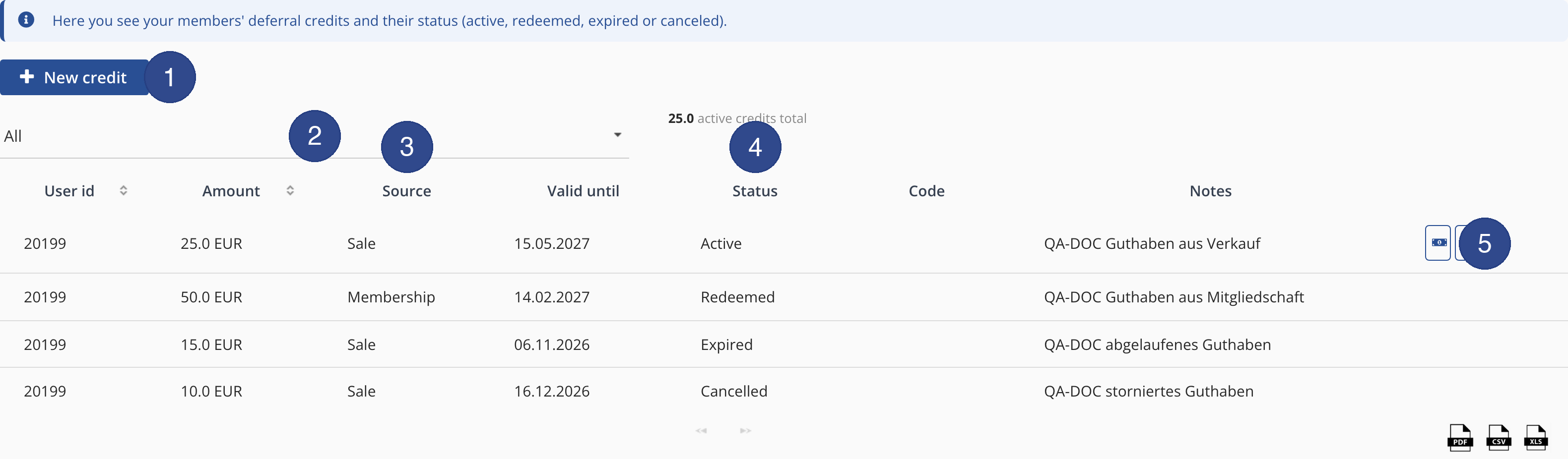
- 1 New credit
- Creates a new credit — in the dialog you pick member, amount, validity (days) and source.
- 2 Status filter
- Narrows the list to one status (active, redeemed, expired, cancelled) or shows all.
- 3 Source
- Where the credit came from: a Sale or a Membership.
- 4 Status
- State of the credit: Active, Redeemed, Expired or Cancelled.
- 5 Actions
- For active credits: redeem or cancel.
Step by step: create a credit
- Open Contacts → Memberships → Credits.
- Click New credit and choose member, amount, validity and source.
- Use the status filter to show active, redeemed, expired or cancelled credits.
- For an active credit, redeem or cancel it via the action buttons.
Tipp The total of active credits is shown at the top right above the list.