Receivables
In the open receivables overview you can see all payments that are authorized or in processing but have not yet been received. You can download invoices and dunning letters or send them directly by email.
Overview
You find this page in the menu under We → Finance → Income & invoicing → Receivables.
Open receivables are payments that have been initiated by your members or customers but have not yet been completed. Typical reasons include pending bank transfers, ongoing direct debit processes, or unconfirmed credit card payments. In the receivables overview you can check the status of all open payments, download invoices and dunning letters, and send them directly by email.
View and manage receivables
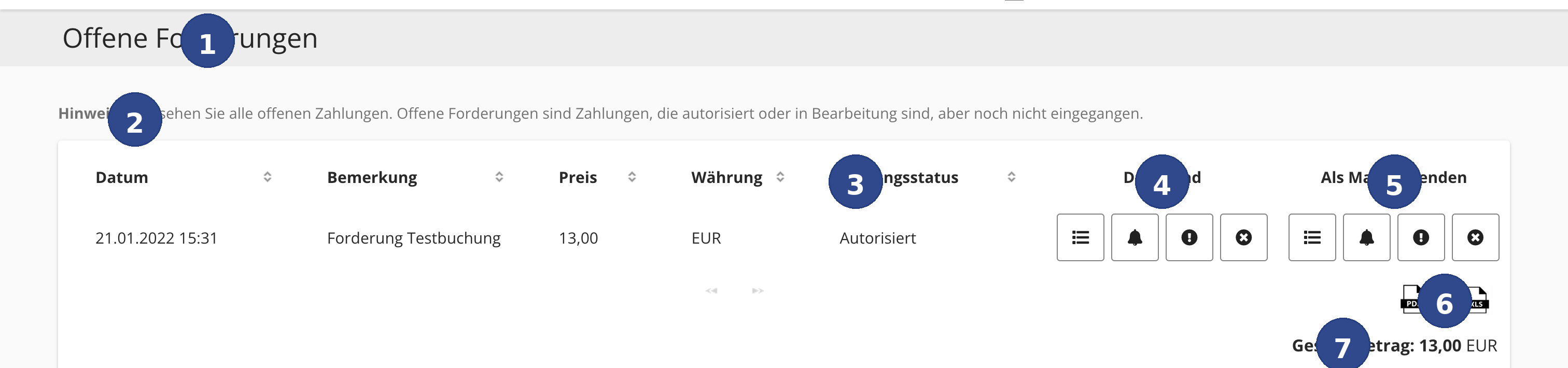
- ① Filter
- Shows only the receivables of the selected unit.
- ② Payment status
- Shows whether a payment is authorized, processing or overdue.
- ③ Record incoming payment
- Records a manual incoming payment for this receivable.
- ④ Send invoice
- Sends the invoice to the contact by e-mail.
- ⑤ Send e-invoice
- Sends the electronic invoice (e-invoice) by e-mail.
- ⑥ Payment reminder
- Sends a friendly payment reminder by e-mail.
- ⑦ First dunning notice
- Sends the first dunning notice by e-mail.
- ⑧ Final dunning notice
- Sends the final dunning notice by e-mail.
Sending emails
When you click one of the email buttons ⑤, a send dialog opens. The dialog shows the recipient name, an input field for the email address with auto-completion from your contact list, the automatically generated subject line, and the PDF attachment (invoice or dunning letter). After clicking Send, the email with the corresponding document as attachment is sent.
Dunning stop for fees
In the fee management you can activate a dunning stop for individual fees. When the dunning stop is set, no dunning letters are generated for open receivables of this fee. You can find this option in the fee settings as a checkbox.
Tips for receivables management
- Regularly check the payment status of your open receivables to detect payment defaults early.
- Use the sorting function to sort by date or amount and quickly find older receivables.
- Start with the 1st dunning and escalate to the 2nd and 3rd dunning level if needed.
- Send dunning letters directly via the email function — the recipient and attachment are filled in automatically.
- Export the receivables list regularly as CSV or Excel for your accounting.
- Use the dunning stop in the fee settings when no dunning letters should be sent for certain fees.