Goods receipt
Goods receipt is where you manage the deliveries for your inventory: you create a delivery, record its status and see the order and delivery dates at a glance.
What is goods receipt for?
You will find this page in the menu under Shop → Stock → Goods receipt.
Goods receipt is where you manage the Deliveries for your inventory. A delivery is an order or delivery document; stock is booked via the goods receipt of an order. To assign quantities to a delivery, Products must already exist in the shop. To open the page you need access to the shop area.
The screen at a glance
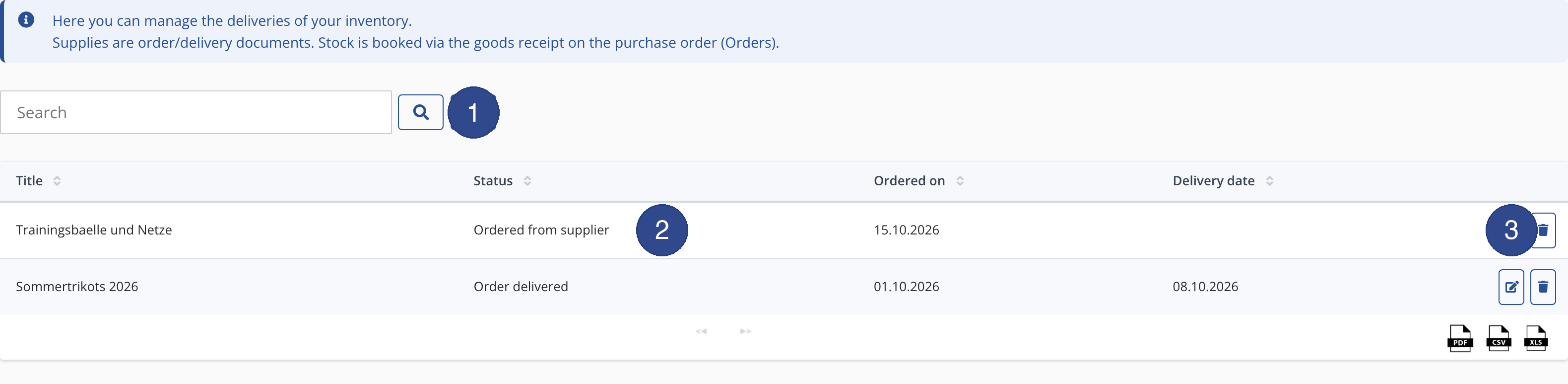
- ① Add delivery
- Use the + button (Add delivery) to open the dialog where you create a new delivery.
- ② Status of a delivery
- The Status column shows where the delivery stands: Ordered from supplier or Order delivered. Next to it you see Ordered on and Delivery date.
- ③ Edit or delete a row
- At the end of the row the pencil icon opens the delivery for editing, the bin icon deletes it.
Step by step: create a delivery
- Open Shop → Stock → Goods receipt.
- Click + (Add delivery).
- On the Goods receipt tab, fill in the fields: Name, Ordered on, Delivery date, Status and, if needed, Remarks.
- On the Products tab, assign the delivered products and quantities to the delivery; this books the stock.
- Click Save. The delivery then appears in the list.
Edit or delete a delivery
Use the pencil icon at the end of the row to reopen and change a delivery; the bin icon removes it from the list.
Tipp If you have many deliveries, use the Search field above the list to filter by name.