Approval inbox
The approval inbox shows every item waiting for approval so you can approve or reject them one by one or in bulk.
What is the approval inbox for?
You will find this page in the menu under We → Finance → Approval inbox.
The approval inbox gathers every item waiting for approval into a single list: Expenses and honorarium statements in Draft status and subsidies in Requested status. You approve or reject entries one by one or in bulk. In addition, you can set an Automatic approval threshold. To open the page you need access to the finance or payment area.
The screen at a glance
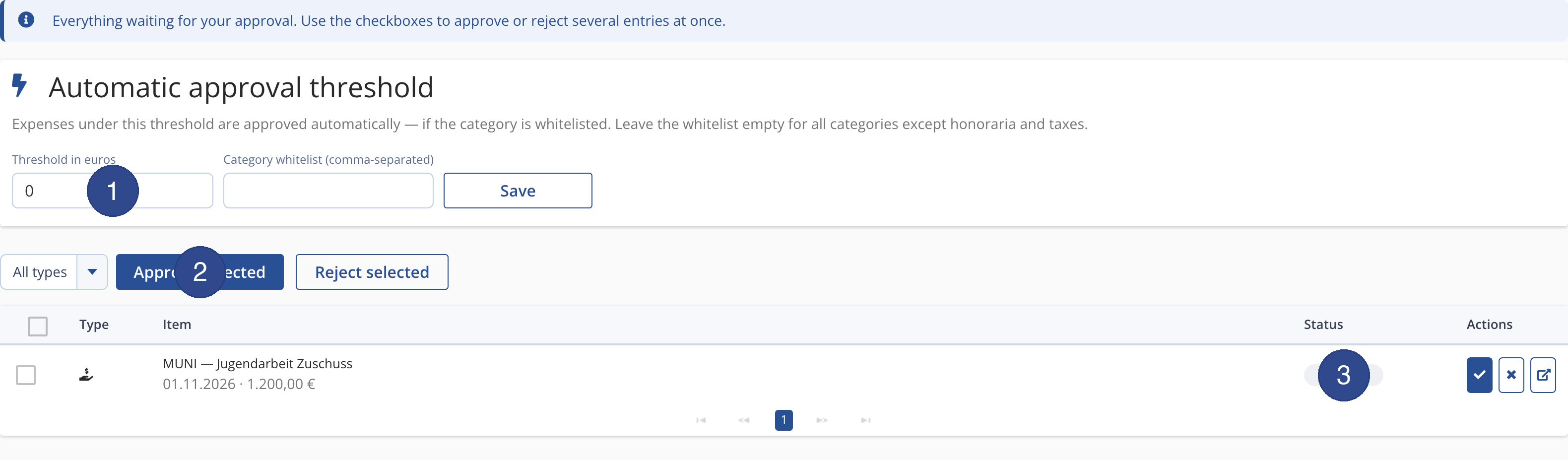
- ① Threshold in euros
- In the Automatic approval threshold card, the Threshold in euros field sets the amount up to which items are approved automatically.
- ② Approve selected
- The Approve selected button approves all ticked entries at once; next to it is Reject selected.
- ③ Item with status
- Each row in the list shows Type, Item and a Status badge; the Actions sit at the end of the row.
Step by step: approve items
- Open We → Finance → Approval inbox.
- Narrow the list with the filters if needed: All types, Expenses only, Honoraria only or Subsidies only.
- Tick the entries you want and click Approve selected or Reject selected.
- Alternatively, use the Approve, Reject or Open actions at the end of a row for a single item.
Automatic approval threshold
In the Automatic approval threshold card you enter a Threshold in euros and, optionally, a Category whitelist (comma-separated). Click Save to apply the setting. Items below the threshold – and, if set, in the whitelist – are then approved automatically.