Newsletter
Create newsletter campaigns with a rich text editor and send them to all registered contacts.
Overview
You find this page in the menu under Contacts → Marketing → Newsletter.
The newsletter feature lets you reach all your registered contacts by email. Whether event announcements, season reviews or special offers – you write your newsletter with the built-in rich text editor and send it to all recipients with a single click.
Before sending you can send a test email to yourself and check the layout. spooorts manages unsubscribes automatically, so that unsubscribed recipients are not contacted again and your mailings remain legally compliant.
Sent newsletters remain stored in the history and can be duplicated as a template for the next mailing.
Creating and Sending a Newsletter
Navigate to the Newsletter section and click + to create a new newsletter:
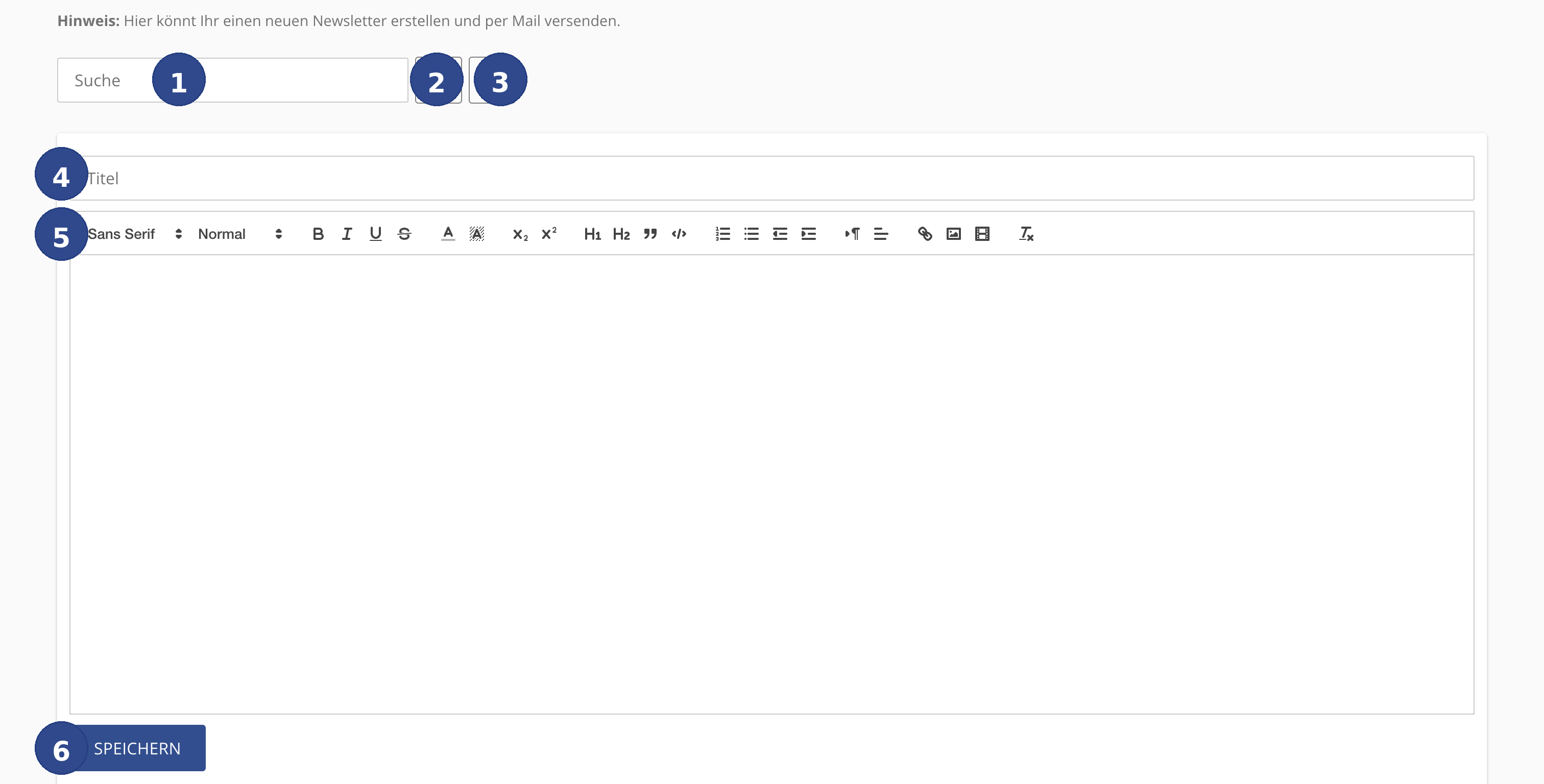
- ① Subject
- Enter the subject line shown in recipients' inboxes.
- ② Personalize
- Inserts placeholders such as first or last name so each contact gets their own version.
- ③ Design / HTML
- Switches between the visual editor and direct HTML editing.
- ④ Text editor
- Formats the content: headings, bold, lists, links and images.
- ⑤ Preview
- Shows how the newsletter looks to recipients, using sample values.
- ⑥ Save
- Saves the newsletter; it can then be sent via the envelope icon.
The newsletter list shows all created newsletters with date and title. Already sent newsletters can still be viewed and edited.
Tips
- Use a concise subject line – it determines whether the newsletter gets opened.
- Keep the text focused and use paragraphs for better readability.
- Don't send newsletters too frequently to avoid overwhelming recipients.