Mail Merge
With mail merge you create personalized letters or emails from a template for a recipient group. You select a template and group, mark the recipients and generate the mail merge.
Overview
You find this page in the menu under Contacts → Marketing → Mail merge.
Mail merge generates personalized letters or emails based on a template for a selected recipient group. Placeholders in the template (e.g. name, address) are filled in automatically per recipient. This lets you send, for example, invitations, dues notices or information letters to many contacts at once.
Finished mail merges can be generated and printed as a PDF or sent directly by email; this way you serve both recipients with a postal address and those with an email address from the same process.
Creating a mail merge
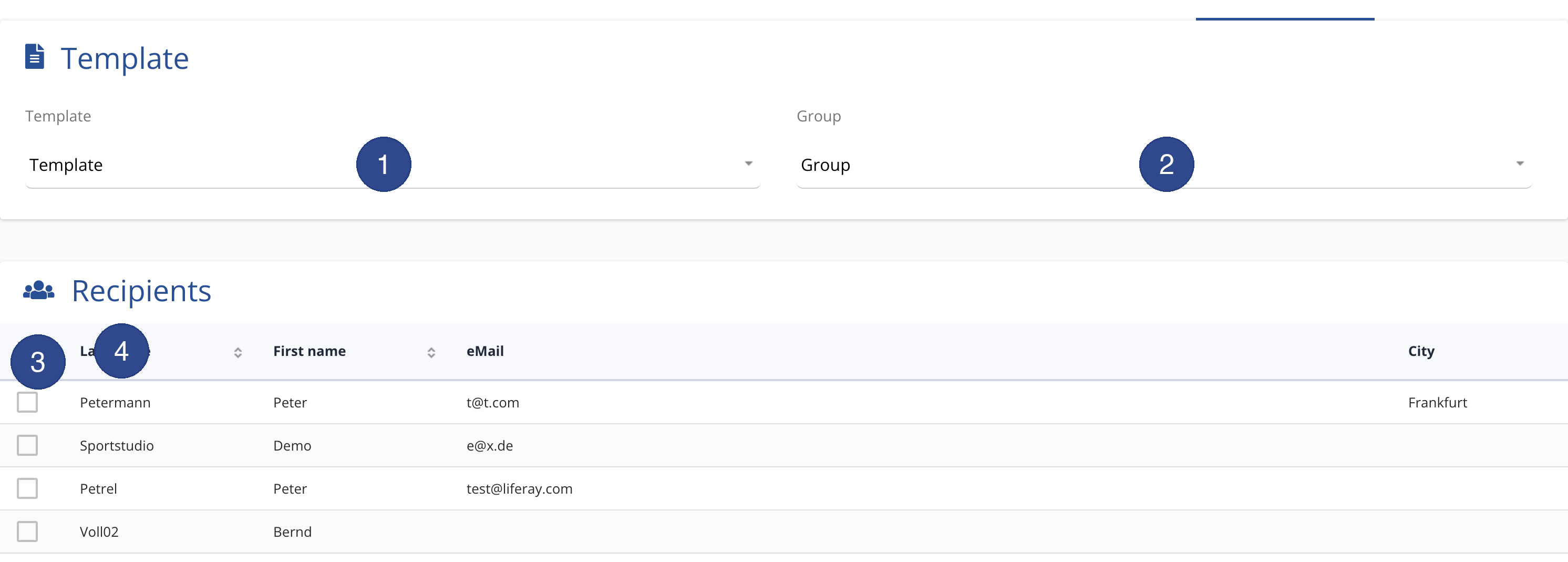
- ① Template
- Use the Template selector to choose the letter or email template that serves as the basis for the mail merge.
- ② Group
- Use the Group selector to narrow the recipients to a contact group — the list below is filled accordingly.
- ③ Select recipients
- Use the checkboxes to mark the specific recipients. The checkbox in the table header selects all at once.
- ④ Recipient columns
- The list shows Last name, First name, eMail and City of each recipient. You can sort via the column headers.
After the selection you generate the mail merge — depending on the template as a print PDF or as a personalized email to all marked recipients.
Tips
- Maintain the templates centrally (see Templates) so that layout and placeholders are correct.
- Use contact groups to quickly narrow recurring recipient circles.
- Check a sample output before sending, to verify the placeholders.