Invoices
The Invoices page shows all customer invoices you issued from registrations, memberships and the shop. You can download invoice PDFs or e-invoices (XML), send them by email, and export the DATEV booking batch.
Overview
You find this page in the menu under We → Finance → Income & invoicing → Invoices.
Under Invoices you will find every customer invoice created in the spooorts Manager — whether it originated from a registration, a membership or a sale in the shop. For each invoice you can download the invoice PDF or the electronic invoice (e-invoice in XML format), send the document directly to the recipient by email, and create dunning letters when needed. For your accounting, the entire booking batch can be exported as a DATEV file.
Views
The page is divided into two tabs. Under Customer invoices you see the invoices you issued to your members and customers. Under Platform invoices you find the invoices spooorts issues to you for using the platform.
Viewing and managing invoices
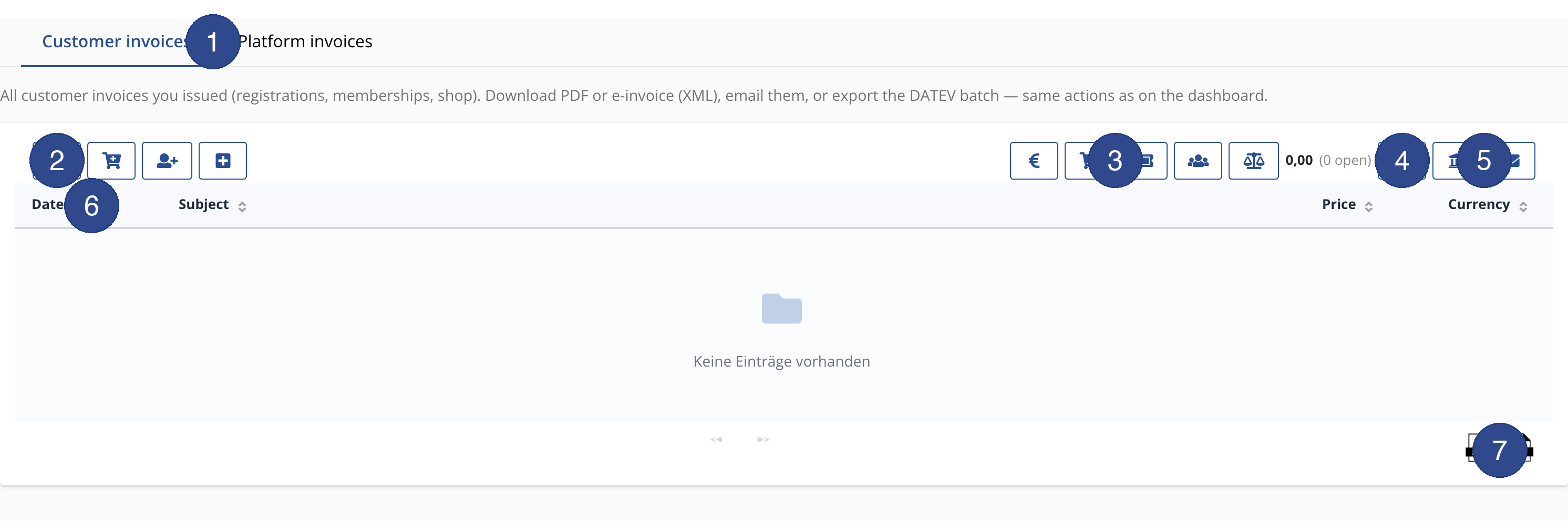
- ① Views
- Use the two tabs to switch between Customer invoices (from registrations, memberships and shop) and Platform invoices (your invoices from spooorts).
- ② Create invoice
- The four buttons on the left let you create a new invoice manually: Enter registration (calendar icon), Enter sale (shopping cart), Add contact (person) and Enter event (plus).
- ③ Sales & open receivables
- This group of icons shows your revenue at a glance: Total sales (€), Product sales (cart), Registration sales (ticket) and Membership sales (people). The scales icon shows your Total Receivables together with the number of items still open.
- ④ Filter table
- The filter icon (funnel) reveals filter options to narrow down the invoice list — for example by period or status.
- ⑤ DATEV export & send
- Use the bank icon to download the DATEV booking batch (EXTF) for your accounting. The envelope icon next to it sends the same booking batch directly by email, for example to your tax advisor.
- ⑥ Sortable columns
- The columns Date, Remark, Price and Currency can be sorted. Click a column header to sort the list in ascending or descending order.
- ⑦ Table export
- Use the icons at the bottom right to export the entire invoice list as a PDF or CSV file.
Creating an invoice manually
In addition to the automatically generated invoices, you can create an invoice by hand at any time using the four buttons ②:
- Enter registration — creates an invoice for an event registration.
- Enter sale — creates an invoice for a sale from the shop.
- Add contact — creates an invoice assigned directly to a contact.
- Enter event — creates an invoice related to an event.
Downloading and sending per invoice
As soon as invoices appear in the list, each row offers several buttons. Use them to download the invoice as a PDF or as an e-invoice (XML), create a delivery note when needed, and access the three dunning levels. Each of these documents can also be sent directly by email — the recipient and attachment are filled in automatically.
Tips for managing invoices
- Use the e-invoice (XML) when you issue invoices to customers who require an electronic invoice format.
- Export the DATEV booking batch regularly or send it directly to your tax advisor.
- Sort by date or price to quickly find specific invoices.
- Check the platform invoices to keep track of your costs for using spooorts.