Notifications
Send targeted email and push notifications to individual contacts or selected groups.
Overview
You find this page in the menu under Contacts → Messages.
Unlike the newsletter which goes to all contacts, notifications allow you to send targeted messages to individual people or selected contact groups. You can send both email notifications and native push notifications to the spooorts app.
Notifications are therefore ideal for time-critical or audience-specific information — such as a short-notice training cancellation for a particular group, a payment reminder to members in arrears or an individual appointment note. Because you select the recipients specifically, the message reaches exactly those affected without burdening all contacts. Push notifications appear directly on the lock screen of the spooorts app and are therefore usually noticed much faster than an email.
You can track the delivery status of each notification, so it remains traceable who received a piece of information.
Creating and Sending Notifications
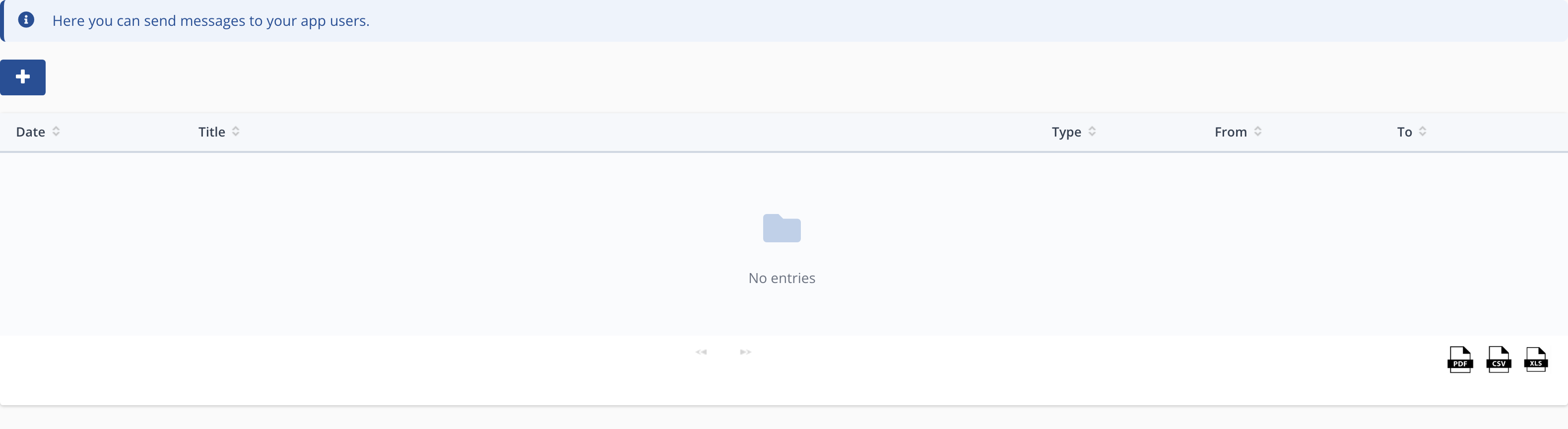
Navigate to the Notifications section and click +:
- Subject – Enter the message subject.
- Message – Write the message text.
- Select Recipients – Switch to the "Contacts" tab and select the desired recipients using the checkboxes.
- Send by Email – Click the "Send Email" button to send the message by email.
- Send by Push – Click "Send Native" to send a push notification to the app.
Delivery Channels
Notifications support two channels that can be used independently:
- Email – The message is sent as an email to the stored address of the selected contacts.
- Push Notification – The message appears as a native notification on the recipients' smartphone (via Firebase). Prerequisite: the recipient must have the spooorts app installed.